If your movie keeps pausing mid-scene, you can usually fix it in minutes. Here is how to stop streaming buffering: test your speed, restart your gear, strengthen Wi-Fi, and lower quality if needed.
This page belongs to a wider series that explains how to stream movies at home.
| Item | Value |
|---|---|
| Netflix HD (720p), recommended speed | 3 Mbps or higher |
| Netflix full HD (1080p), recommended speed | 5 Mbps or higher |
| Netflix Ultra HD (4K), recommended speed | 15 Mbps or higher |
| YouTube HD on a TV, recommended minimum | 7 Mbps |
These figures come from the Netflix Help Center speed page and the YouTube Help troubleshooting page. They can change, so check the source before you rely on them.
Why does streaming keep buffering?
Buffering happens when video reaches your screen more slowly than it plays. Netflix explains that its content passes through servers, the internet and your provider’s network before it reaches you, and congestion anywhere along that route can hurt playback.
Inside your home, Wi-Fi strength and the number of devices online matter too. The same Netflix page says video quality depends on how strong your home connection is and how many devices are using it at once.
The Netflix troubleshooting page points to a few usual suspects when a title loads slowly or rebuffers:
- A weak or unstable internet connection.
- A device that needs a software update.
- A public network that blocks video services.
- A mobile hotspot, cellular or satellite link that is too slow.
Check your internet speed first
The Netflix help center recommends 3 Mbps or higher for HD (720p), 5 Mbps or higher for full HD (1080p) and 15 Mbps or higher for 4K, as its recommended speeds page shows. If 4K is your goal, the guide on internet speed for 4k streaming looks at those numbers in more detail.
On a phone, tablet or computer, open a browser and run the test at fast.com. On a TV or streaming device, open the Netflix app, choose Get Help, then Check your Network, as the same Netflix page describes.
For YouTube on a TV, the YouTube Help page recommends a minimum of 7 Mbps for HD streaming. It also suggests running the speed test right next to the TV.
Restart your device and home network
A restart is the cheapest fix, so try it before touching settings. For a TV or streaming box, Netflix says to press the power button once and wait 1 minute, or leave it unplugged for 3 minutes instead.
On a phone or tablet, turn the device fully off rather than just locking the screen. Then restart the home network, leaving the modem and router unplugged for 30 seconds, as the Netflix steps advise:
- Turn off or unplug your smart TV.
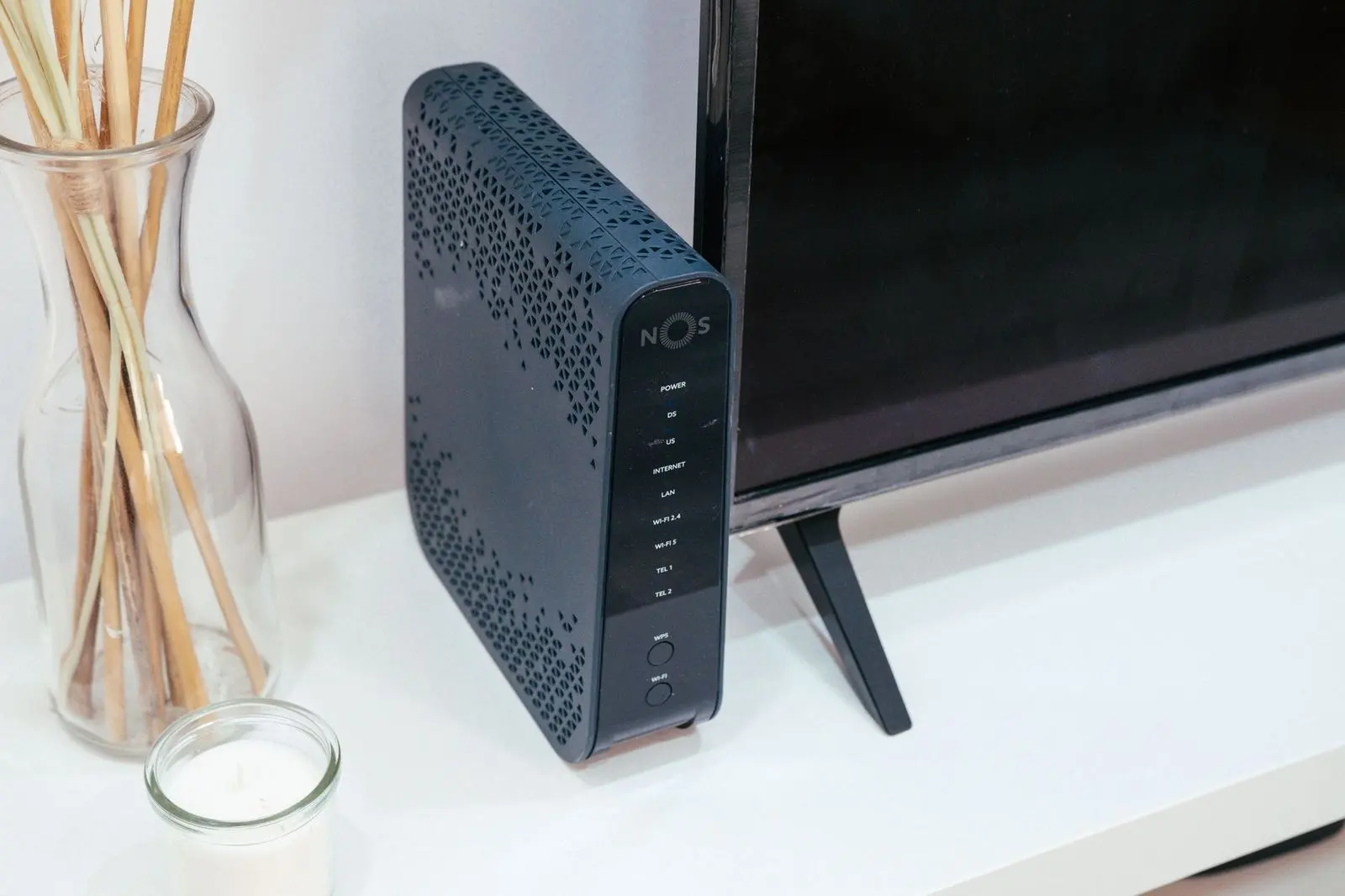
- Unplug the modem, and the wireless router too if it is a separate device.
- Plug the modem back in and wait until no new indicator lights are blinking.
- If you have a separate router, plug it in and wait the same way.
- Turn the TV back on and try your movie again.
Update the device
Netflix says to update your device’s firmware or software to the latest version, and its troubleshooting page gives these menu paths:
- Roku: Settings, System, then Software update.
- Apple TV: Settings, then System, Software Updates and Update Software.
- Fire TV or Fire TV Stick: you may need to install multiple updates to reach the latest firmware.
- Smart TVs and cable boxes: contact the maker, and have your Wi-Fi name, password and Netflix sign-in ready before you begin.
Improve your Wi-Fi signal
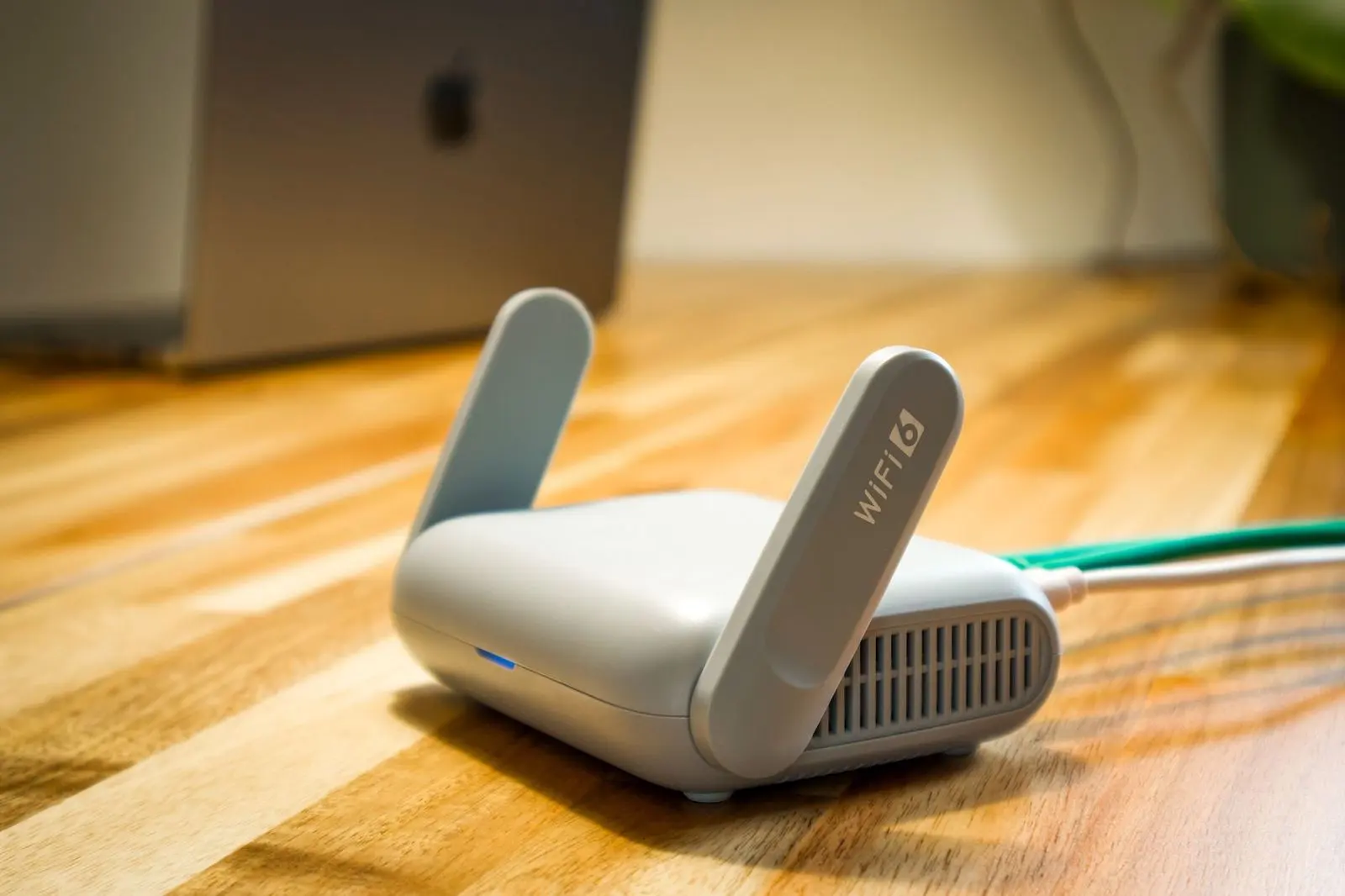
Distance and clutter are the quiet culprits. Netflix suggests moving the router and your device closer together, ideally into the same room.
- Move the router away from other wireless devices and appliances.
- Keep it in an open space off the floor.
- Put it on a desk or bookshelf, where reception tends to be better.
For TVs, YouTube Help adds that the set should sit within range of the router, with minimal interference such as being recessed in a wall or blocked by metal. It also suggests minimizing other devices connected to your network.

Test your movie after each change, so you know which tweak worked. Netflix’s quality guide gives the same advice: stop and check whether a change made a difference before moving on.
Adjust quality and app settings
If speed is the limit, lower quality can beat endless pausing. When your provider caps your speed, Netflix suggests trying a different video quality setting for a more stable connection.
In a browser, Netflix’s Playback Settings include Data usage per screen. If you changed it from Auto and buffering followed, set it back to Auto, as the Netflix quality guide says.
On YouTube, open Settings in the video player, choose Quality, and see whether you can adjust it manually, as YouTube Help describes. The same page lists these quick fixes for a movie that buffers or gets stuck:
- Switch between Wi-Fi and your mobile network, remembering that data rates may apply.
- Tap fast forward to skip a couple of scenes ahead.
- Close and reopen the app.
- Check for app updates, then replay the video.
Trying another device also helps you tell a TV problem from a network problem. YouTube Help recommends watching on a different device to see whether the same issue continues.
When to call your internet provider
If nothing works, your provider is the next stop. Netflix notes that an ISP can check for an outage in your area, fix common router or modem issues and incorrect network settings, and restart or reset your connection.
Tell them whether the problem happens on one device or several, and whether the device uses Wi-Fi or a cable. Once your connection is sorted, you might compare the best streaming services for movies to find one that suits your setup.
This site is an independent educational publication. It is not affiliated with Netflix, YouTube or any streaming service, and it covers licensed viewing options only.
Frequently asked questions
Do too many devices cause buffering?
Show answer
They can. Netflix points out that the count of devices sharing your home internet at the same moment affects picture quality, so pause other streams and downloads as a first test.
What speed do I need to stream movies in HD?
Show answer
Netflix asks for at least 3 Mbps for 720p and 5 Mbps for 1080p, according to its speed recommendations. YouTube’s TV guidance sets the bar higher, at a 7 Mbps minimum for HD.
Will restarting my router really help?
Show answer
Netflix lists a modem and router power cycle among its fixes for slow or buffering playback. Wait for the indicator lights to settle before you switch the TV on again, as the troubleshooting page explains.
Why does my movie start soft and then sharpen?
Show answer
That can be normal. Netflix says a title will sometimes begin at a lower resolution and move up after a short time, and it may stay lower on slow or unstable connections.
Can public Wi-Fi block streaming?
Show answer
Yes. Venues such as cafés, hotels and schools sometimes block video services, so Netflix recommends asking the venue before you assume your device is at fault.